Hermes as My Time Tracking Assistant
Time tracking is one of those things I always plan to do diligently - and always fail at.
The start of the month looks promising. I dutifully log tasks, meetings, and small detours. A week later I have completely different worries, and at the end of the month I’m trying to reconstruct, in hindsight, what I actually did.
I’d need someone standing behind me, kicking me to log my work.
Hermes
Recently I tried Hermes AI and its Slack integration. Since I use Slack practically all day, a simple idea came to mind: let Hermes reach out to me at random times and ask what I’m currently working on.
The important part is that this doesn’t force me to switch context the way ordinary notifications from colleagues do - those often mean jumping to a different task. I don’t open any timesheet system, form, or web app. I reply with a single sentence right in Slack and keep working; Hermes logs the answer automatically.
The random times are intentional. If the ping always showed up at 10:00, 13:00, and 15:00, I’d quickly get used to it and subconsciously start ignoring it. This way it catches me during real work, and the sample of the day is more natural.
How it works
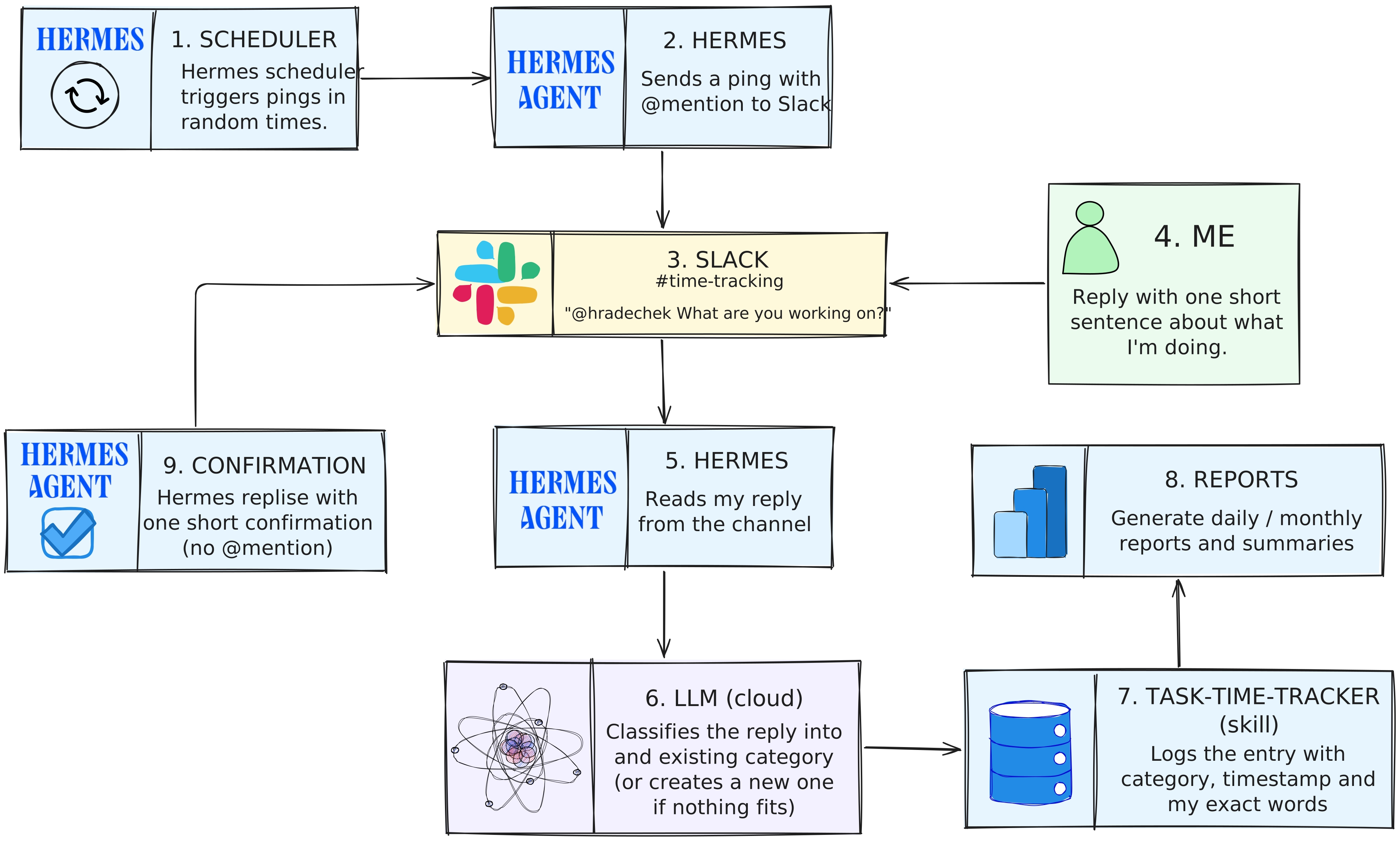
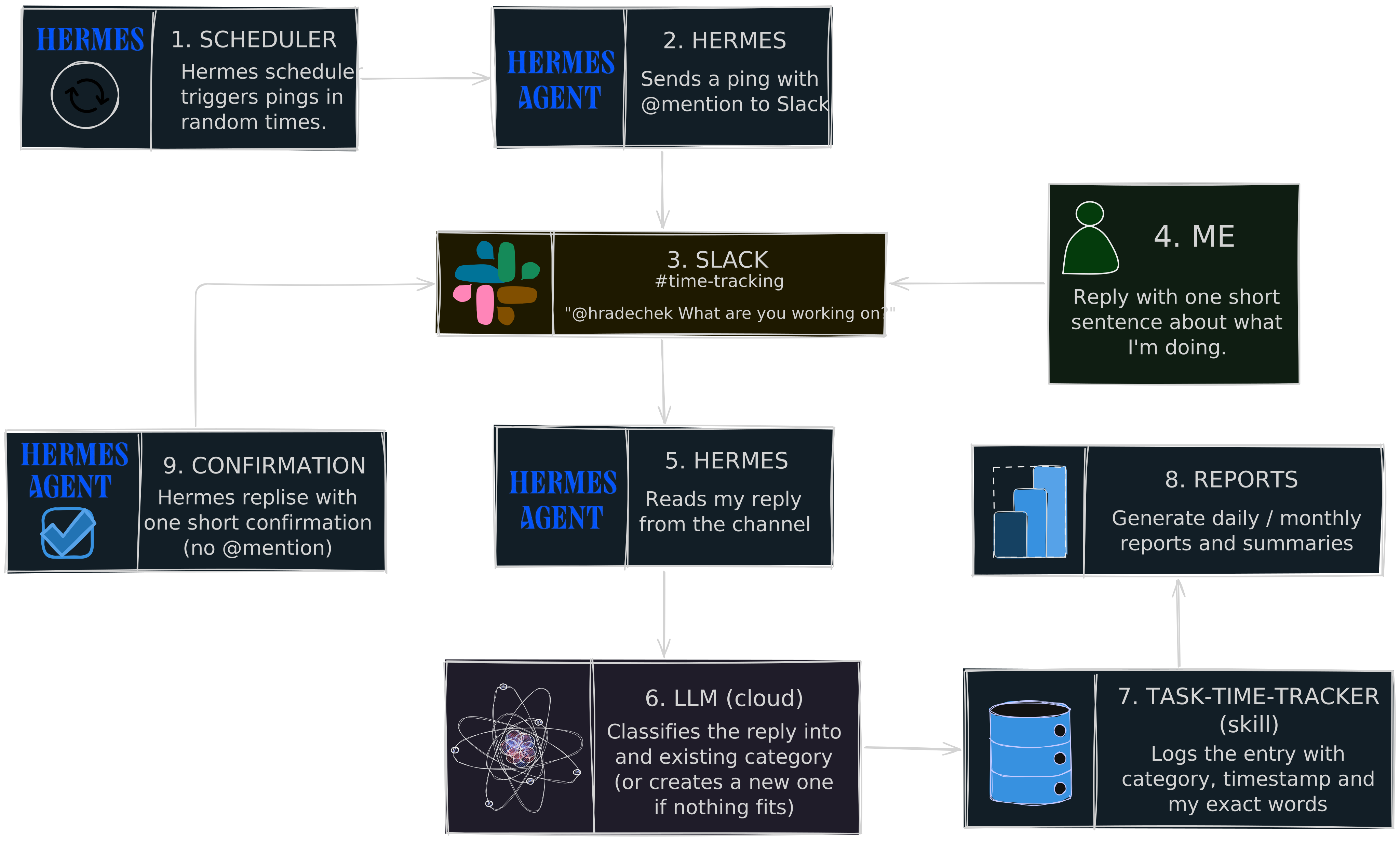
An example of a single interaction:
Hermes:
@ivo What are you working on?

Ivo:
Finishing JWT decoder UI and discussing extension permissions.

Hermes:
Logged under JWT Decoder.
The whole “big-brain” part (classifying the answer into a category) runs on a language model. The data, the scheduler, and the logging stay local.
Components
- Hosting - a Raspberry Pi or another machine where Hermes runs 24/7.
- Hermes Gateway - the bridge between Hermes and Slack.
- Slack channel
#time-tracking- the place where pings and replies happen. - Task-time-tracker skill - logs records and generates reports.
- Hermes scheduler - schedules random pings throughout the day.
- LLM - classifies replies into existing categories.
Setup
The whole trick comes down to two things:
- Hermes reads every message in the channel automatically.
- The ping uses an
@mentionso Slack sends you a notification.
This is configured in the Slack gateway config (hermes config edit, the slack section).
1. Hermes reads the channel + pings with a mention
Hermes is set up in the Slack gateway so that it reads every message in the #time-tracking channel automatically - you don’t have to tag it in your reply.
When a ping arrives and you answer with an ordinary sentence, Hermes picks it up and processes it.
The ping itself tags you (@you what are you working on?).
The reason is simple: I have notifications for this channel set to “mention only”. Without the tag, Slack wouldn’t let me know that Hermes is asking.
2. channel_prompts – so Hermes knows it should log
Without a standing instruction, Hermes would respond to a bare message conversationally (“what do you mean?”) instead of calling the skill.
channel_prompts gives it a permanent directive that every message in this channel is a reply to a time-tracking ping.
channel_prompts:
  C0XXXXXXX: "Every message in this channel is my reply to a time-tracking ping. Log it using the task-time-tracker skill: first run `ping categories`, classify my reply into an existing category (create a new one only if nothing fits), then run `ping log` with my exact words. Reply with one short confirmation line. Do not use any other task tool."
After logging, Hermes replies with a short confirmation.
And here’s a nice property of the whole setup: since the confirmation doesn’t use an @mention and the channel notifications are set to “mention only”, that reply won’t interrupt me again.
It lands quietly in the channel and I can keep working.
After every config change, don’t forget:
hermes gateway restart
The task-time-tracker skill
The skill exposes simple commands via scripts/tracker.py:
ping categories
ping log
python3 scripts/tracker.py report month
The classification logic is intentionally simple:
- put the reply into an existing category,
- create a new category only when nothing fits.
This naturally stabilizes the number of categories and keeps the reports readable.
TL;DR
- Install the Hermes Agent.
- Connect Slack via the Hermes Gateway.
- Create a
#time-trackingchannel. - Configure Hermes to read every message in it.
- Set up
channel_prompts. - Install or write the
task-time-trackerskill. - Restart the gateway and test the workflow.
- Set up random pings via the Hermes scheduler.
The result: throughout the day Hermes occasionally asks what you’re working on. You reply with one sentence and the rest happens automatically.
Conclusion
This setup won’t suit everyone. Some people may find regular notification interruptions annoying.
It works for me precisely because the reply takes a few seconds and doesn’t require switching to a different tool. Hermes asks me right where I already work all day - on Slack.
Logging itself, however, is only half of the story. The more interesting part begins the moment these records start turning into reports and statistics.
I’ll cover that in a separate article.